To find out what happened on an ArduPilot flight, you need three things at the same moment: where the vehicle was and what mode it was in, what the camera saw, and which parameters it was flying with. UXDuck puts them on one timeline. Open a tlog or bin from the Logbook, add the flight's video with Add a video…, and press play. The maps, the Cockpit and every other tab show the flight as it was, the video plays in step, and the Parameters tab shows each value as the vehicle had it at that second, with every change marked on the timeline and who made it.
This post is for whoever has to answer "why did it do that?" after a flight: a flight-test engineer at the end of a test day, a team lead reading a crash report, or a pilot whose copter went home on its own. Each section below cites someone asking the same question in public and shows what UXDuck 0.13.0 does about it, with a real flight replayed step by step.
Why is "what happened on that flight?" slow to answer?
Because the answer is spread across three tools. The log is in one, the video in another, and the parameters in a third, and none of them share a clock.
Parameters are the clearest example. In August 2023 a Copter user wrote on ArduPilot Discourse: "I recently flew my vehicle to tune some parameters. Now I am analyzing the logs and I want to know if there is a way to see within the log when a specific parameters was changed so I can see the effects of the parameter change" (ArduPilot Discourse). The replies are good, and they show the work involved: save your current parameters to a file, open the old log in Mission Planner's "Review a Log", then Show Params and Compare Params, ignoring "a bunch of read only system parameters that always change, like flight time and boot count". Or use MAVExplorer's paramchange command, which "will show the old and new values". More than a year later, someone else in the same thread had zoomed into part of a flight in Mission Planner and selected Show Params, but "when I clicked on 'Modified,' nothing showed up". An earlier thread asks for "better ways to extract the parameters and their settings" from a DataFlash file (ArduPilot Discourse).
Video is the second. ArduPilot's own Video Overlay web tool exists to "Synchronise ArduPilot DataFlash log telemetry with video footage and export a composited video with telemetry overlay", and you line them up by setting "the sync offset" by hand (ArduPilot Video Overlay). It sits on ArduPilot's work-in-progress tools page. Before it, people screen-recorded Mission Planner's tlog playback next to their onboard video. One found in 2019 that "the video can't be synchronized with the telemetry data" and that "I had to speed up the video to 106.4 % to achieve a correct synchronization with the onboard video" (ArduPilot Discourse).
Graphs are the part that's solved. UAV Log Viewer at plot.ardupilot.org is "an easy to use viewer for ArduPilot dataflash and telemetry logs", where data "can be plotted and even manipulated, and the flight visually re-flown in 3D" (ArduPilot docs). When you know which field to graph, use it.
What's slow is the step before the graph: watching the flight, with its video and its settings, until you know where to look.
How do I open an ArduPilot log in UXDuck?
From wherever the log already is (Replay a flight):
- Flights flown with UXDuck are in the Logbook. Click one, or its Replay link.
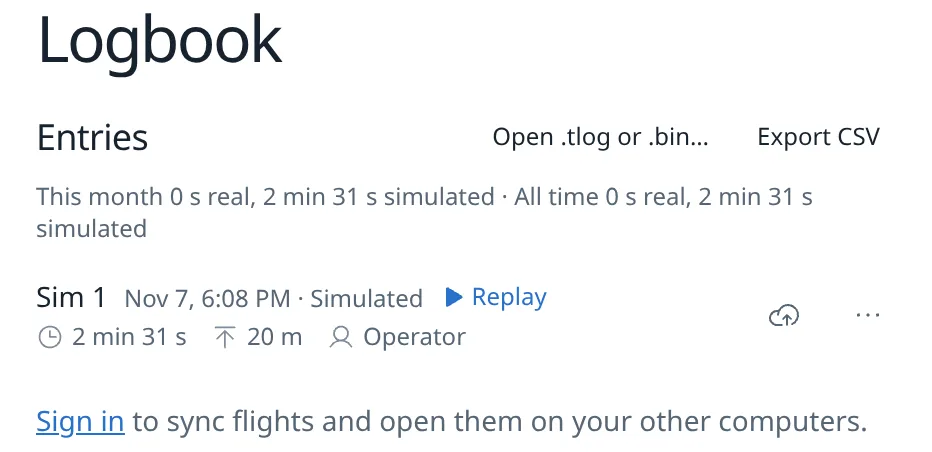
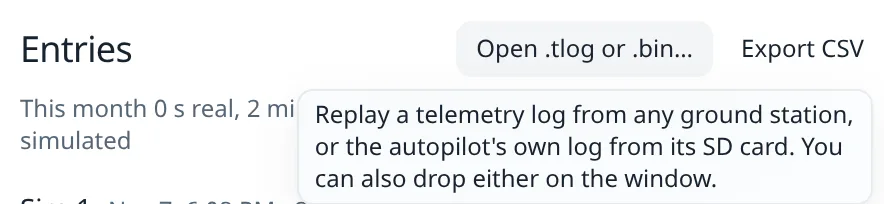
- A file: Logbook › Open .tlog or .bin…, or drop a telemetry log (
.tlog) or a DataFlash log (.bin) on the window. Mission Planner's, QGroundControl's and MAVProxy's telemetry logs all open. - The vehicle's SD card: plug it in and the Logbook offers to copy its DataFlash logs.
- Mission Planner's and QGroundControl's own folders: UXDuck Desktop looks in
Documents/QGroundControl/TelemetryandDocuments/Mission Planner/logsand lists their flights in the Logbook, behind the menu beside On this computer. They replay straight from the file, and nothing is copied. Settings › Logbook › Logs from other apps turns each folder on or off and adds others, such as MAVProxy's (Logs from other apps).
Prefer the terminal? uxduck replay flight.tlog --play --speed 5 opens the same replay, which is handy in a script.
A replay plays from 10 seconds before arming to 10 seconds after the flight ends, and turning off Armed only on the bar plays the rest. Nothing can be sent to a replay vehicle, so you can click around a crash without worrying about what you might command.
What does a replay show?
Everything the tabs show when the vehicle is live, as it was at the replay's time: the vehicle flying its path on both maps, the Cockpit, Telemetry, Messages and Parameters. The bar at the foot plays and pauses, sets the speed from ¼× to 16×, and steps a frame at a time with , and . (The bar).
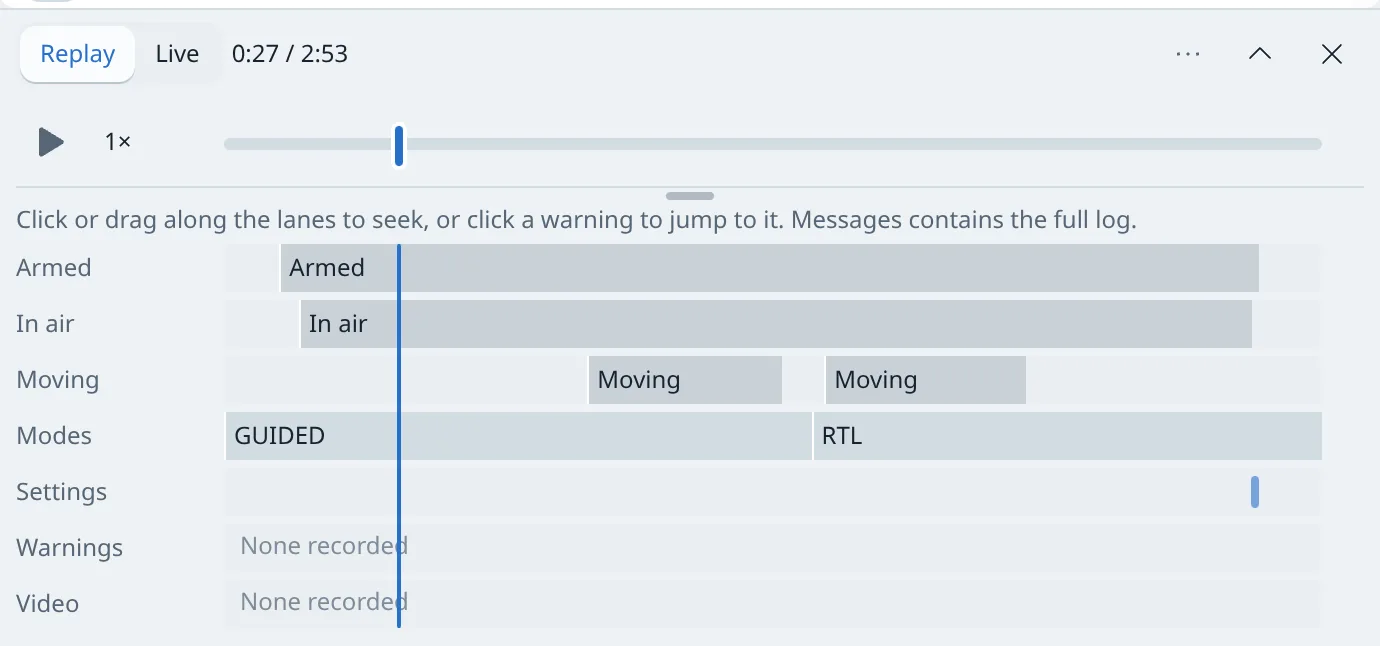
Above it, Details opens the timeline. Its lanes are Armed, In air, Moving, Modes, Settings and Warnings, plus one lane for each video. "Click or drag along the lanes to seek, or click a warning to jump to it." So the first question, "when did it change mode, and why?", is answered by looking at where the Modes lane changes and what sits in the Warnings and Settings lanes just before it.
A real flight: a low-battery failsafe, replayed
Here's one flown on 7 November 2026 in UXDuck Desktop 0.13.0 on Linux, with UXDuck's own ArduPilot Copter simulator. It's a simulated quadcopter, so the "camera" is a screen recording of UXDuck's 3D view taken during the flight. A screen recording of your simulator is one of the videos Add a video is made for (Add a video).
- 16:01:07: it takes off and climbs to 40 m in GUIDED.
- 16:01:31: it's sent to a point to the south-west.
- 16:03:57: while it holds there, two battery failsafe settings are changed in the Parameters tab:
BATT_LOW_MAHfrom 0 to 1500 andBATT_FS_LOW_ACTfrom 0 to 2, which is RTL on Copter (ArduPilot battery failsafe). The reason typed for the change was "Testing the low-battery failsafe". - 16:04:51: the vehicle says "Battery 1 is low 12.31V used 1801 mAh" and "Battery Failsafe", and switches to RTL.
- 16:06:38: it lands at home and disarms with 19% left. Straight after, it says "PreArm: Battery 1 low capacity failsafe", so it won't arm again on that battery.
In the replay, all of that is on the timeline without opening a single graph. The Modes lane shows STABILIZE, a long GUIDED and then RTL. The Warnings lane has a mark where RTL begins and another after landing. The Settings lane has a mark at 2:58, and hovering it says "2:58 · BATT_LOW_MAH 0 → 1500 by UXDuck". The video lane is labelled with the file's name.
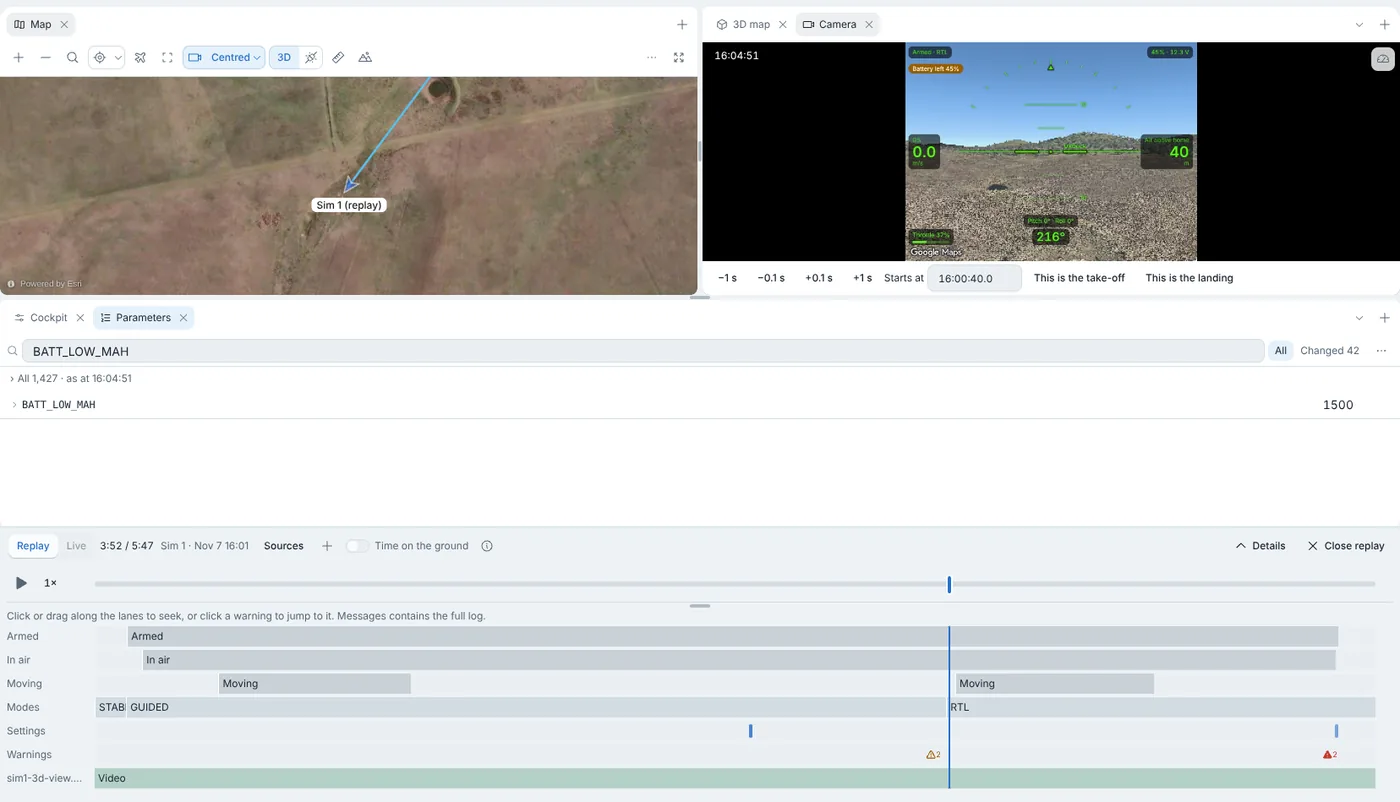

Pause at 3:52, where RTL begins. The map shows the vehicle turning for home, and the video shows the 3D view's own display reading "Armed · RTL" and "Battery left 45%". The Parameters tab says "All 1,427 · as at 16:04:51" and shows BATT_LOW_MAH as 1500. Drag back to 2:58 and it says "as at 16:03:56" and shows 0, because one second before the change, that's what the vehicle was flying with.
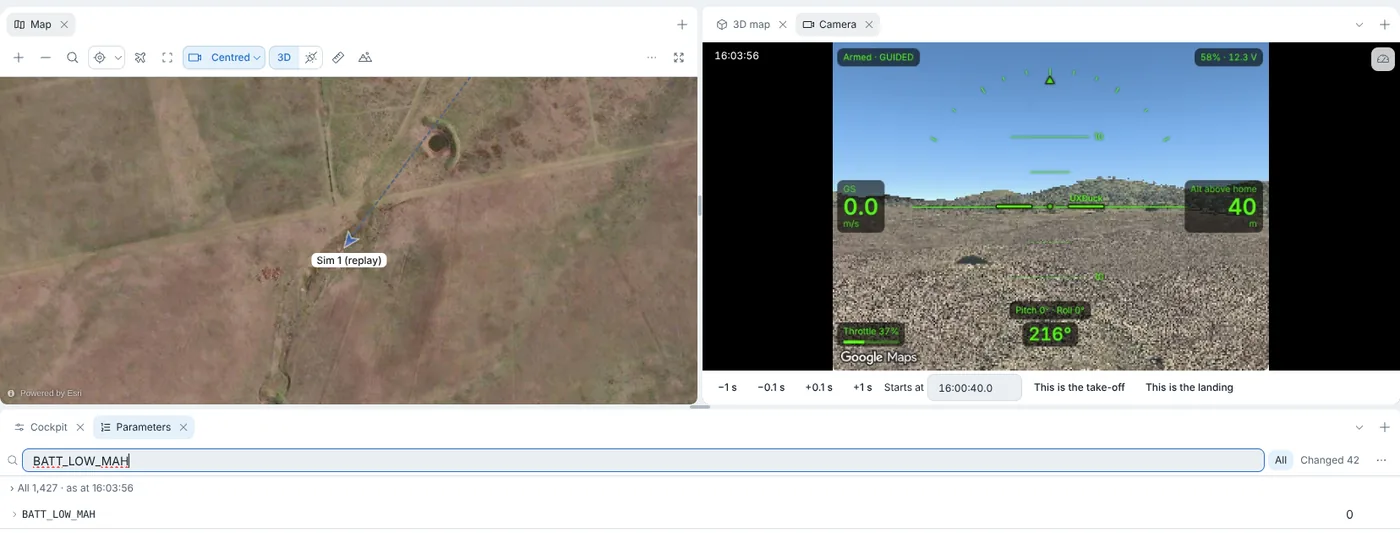
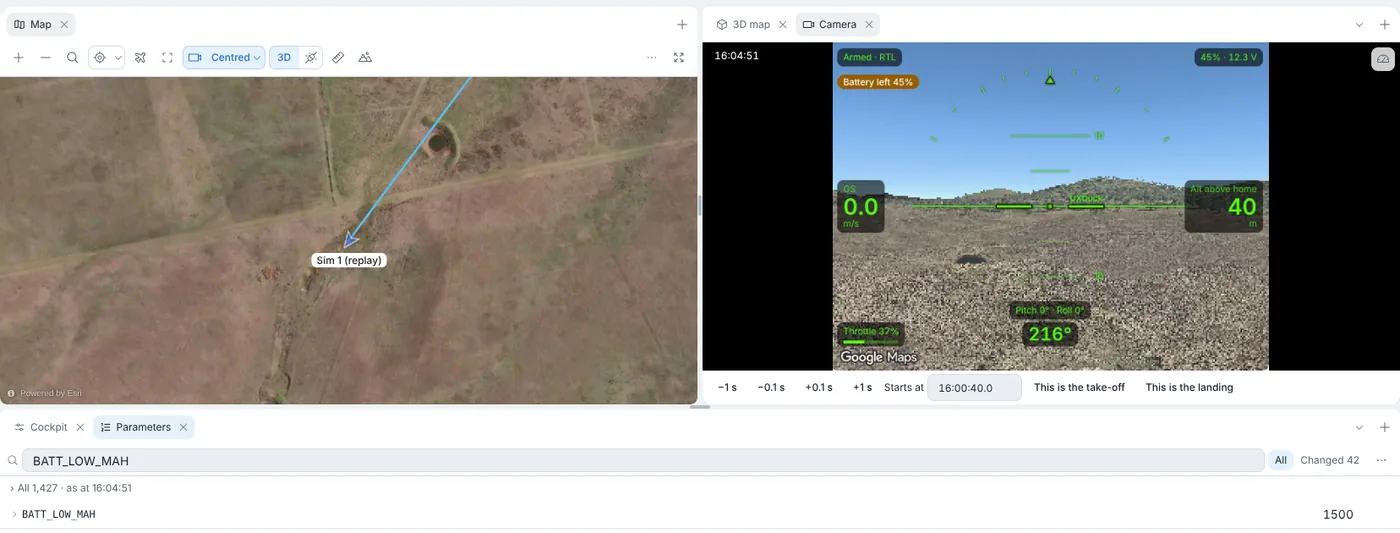
That's the whole answer to "why did it come home?": the settings changed at 16:03:57, its estimated remaining capacity dropped below the new 1,500 mAh threshold 54 seconds later, and the failsafe did what it was set to do.
How do I see when a parameter changed in an ArduPilot log?
Open the replay's Parameters tab. It shows the values as the log had them at the replay's time, from a parameter download in the log or the one before the flight (Parameters in a replay). The line above the list says how many there are and when, such as "All 1,427 · as at 16:04:51". Search works as it does on a live vehicle.
Click that line to list every setting changed in the log, with its time, its old and new value, and who changed it. For the flight above:

Two things in there are easy to miss when you compare parameter files. The barometer ground pressures and the hover throttle were changed by the vehicle itself, not by anyone at the ground station: Copter learns MOT_THST_HOVER in flight and saves it. And the 36 changes to vehicle statistics, the flight time and boot counters the Discourse reply says to ignore, are folded away for you. They're still there if you want them.
Values first read later in the log are marked later in the list, and values seen only before the vehicle restarted are left out, because they may not be current.
How do I sync a video with an ArduPilot log?
Add it to the replay. Choose Add a video… on the replay's Camera tab, or Logbook › … › Add a video…, and pick the file. The dialog says what it takes: "A screen recording or a phone's video from the same time: MP4, MOV or MPEG-TS. It stays where it is and plays with the replay." H.264 and HEVC play as they are, and MPEG-2 is converted once (Add a video).
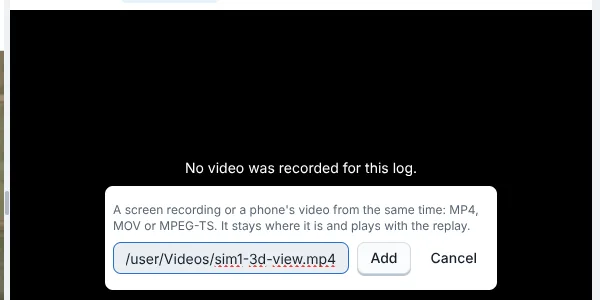
UXDuck places the video by its KLV time stamps when it has them. Otherwise it uses the time the file says it began, and if there's nothing to go on, the arming. Then you check it the obvious way: pause where the video shows the take-off and press This is the take-off, or This is the landing. The Camera tab also nudges it by −1 s, −0.1 s, +0.1 s or +1 s, or you can type when it starts. In the flight above, Starts at reads 16:00:40.0, the second the screen recording started.
Each video you add is its own camera with its own lane, and stays where you put it, so a phone video from the ground and a payload recording can both play with the same flight.
If what you need is a finished video with telemetry burnt into it, to post or send, ArduPilot's Video Overlay tool exports exactly that. UXDuck's replay is for watching a flight and working out what happened, not for exporting a composited video.
Can I replay several flights from a test day together?
Yes. An operation's Replay plays all its flights on one clock. If one is a little off, nudge it in the bar's sources list, and the operation keeps the nudge so it opens matched next time (Several flights together).
A log you opened from a file can be kept too: Save to account on the bar saves its flights to your account and uploads the log, so they replay on your other computers, and in UXDuck Web with nothing installed (Save a log to your account). Uploading needs UXDuck Desktop.
Can an AI agent read a replay?
Yes. With UXDuck connected to Claude or Codex over uxduck mcp, an agent reads a replay vehicle's parameters at the replay's time, or at a time it asks for, and param_changes lists what changed in the log, leaving vehicle statistics out unless it asks (Parameters in a replay, Use with AI agents). So "what was BATT_FS_LOW_ACT when it went into RTL, and who changed it?" is a question you can ask in words.
Which ArduPilot log viewer should I use?
It depends on the question.
| Tool | Best for | Video | Parameters over time |
|---|---|---|---|
| UAV Log Viewer (plot.ardupilot.org) | Graphing any field and re-flying in 3D, in a browser | No | Parameters panel |
| Mission Planner, Review a Log | Graphs and Auto Analysis on Windows | No | Show Params, and Compare Params against a file |
| MAVExplorer | Scripted analysis from a terminal | No | paramchange with old and new values |
| ArduPilot Video Overlay | Exporting a video with telemetry burnt in | Yes, offset set by hand | No |
| UXDuck | Replaying the whole flight with its video and settings on one timeline | Yes, placed by KLV, file time or arming | Values at each moment, with who changed them |
UXDuck 0.13.0 doesn't graph log fields. When the replay has shown you where to look, UAV Log Viewer is the tool for the graph.
If you're new to ArduPilot, replays are also the quickest way to learn from your own flights, which the post on learning ArduPilot covers.
Log problems and where UXDuck covers them
| Problem | What UXDuck does | Guide |
|---|---|---|
| Logs in different places | Opens .tlog and .bin, SD cards, and Mission Planner's and QGroundControl's log folders | Replay a flight |
| Finding the moment that matters | Timeline lanes for arming, in air, moving, modes, settings, warnings and video | The bar |
| Video on its own clock | Add a video, placed by KLV, file time or arming, with take-off and landing buttons | Add a video |
| Which parameters were in effect | Parameters as at the replay's time, and every change with who made it | Parameters in a replay |
| A test day of flights | An operation's flights on one clock | Several flights together |
| Asking about a flight | param_changes and parameters at a time over uxduck mcp | Use with AI agents |
Try it
- Download UXDuck. Adding a video needs UXDuck Desktop.
- Open Logbook › Open .tlog or .bin… and pick a
.tlogor.bin, or one Mission Planner or QGroundControl already has. - Open the Camera tab, choose Add a video…, and pick the flight's video.
- Press play, open Details, and click the first mark in the Settings or Warnings lane.
No log to hand? Open app.uxduck.com, choose Start flying, fly for a minute, then replay it from the Logbook.
Frequently asked questions
Can UXDuck open Mission Planner and QGroundControl logs?
Yes. It opens their telemetry logs (.tlog) and ArduPilot DataFlash logs (.bin). UXDuck Desktop also finds the logs in Mission Planner's and QGroundControl's own folders and replays them from the file without copying them.
How does UXDuck line up a video with an ArduPilot log?
By the video's KLV time stamps when it has them, else by the time the file says it began, else at the arming. You can then mark the take-off or the landing in the video, nudge it by a tenth or a whole second, or type when it starts.
Which video formats can I add to a replay?
MP4, MOV and MPEG-TS. H.264 and HEVC play as they are, and MPEG-2 is converted once. The file stays where it is.
Can I see which parameters were set at a moment in the flight?
Yes. A replay vehicle's Parameters tab shows each value as the log had it at the replay's time. Clicking the count above the list shows every change in the log, with its time, old and new value, and who changed it.
Does UXDuck plot log graphs?
Not in UXDuck 0.13.0. It replays the whole flight with its video and settings. For graphing log fields, UAV Log Viewer at plot.ardupilot.org is ArduPilot's recommended tool.
Can I replay a log in the browser?
Yes. UXDuck Web replays flights flown in the browser and logs saved to your account. Adding a video and uploading a log need UXDuck Desktop.
Can a replay send commands to a vehicle?
No. Nothing can be sent to a replay vehicle, and nothing is recorded of it.
Is UXDuck free?
UXDuck is free for personal, non-commercial use and non-commercial academic use. For business or government use, contact support@uxduck.com for pricing.